
LifeOS
Local-first companion
Voice-first, privacy-first AI companion for Windows - reminders, chat, web answers, and email, on-device by default.
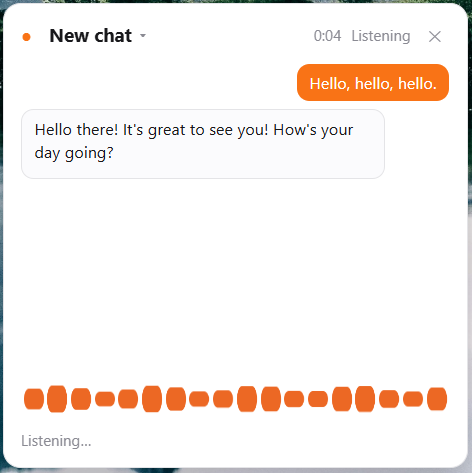
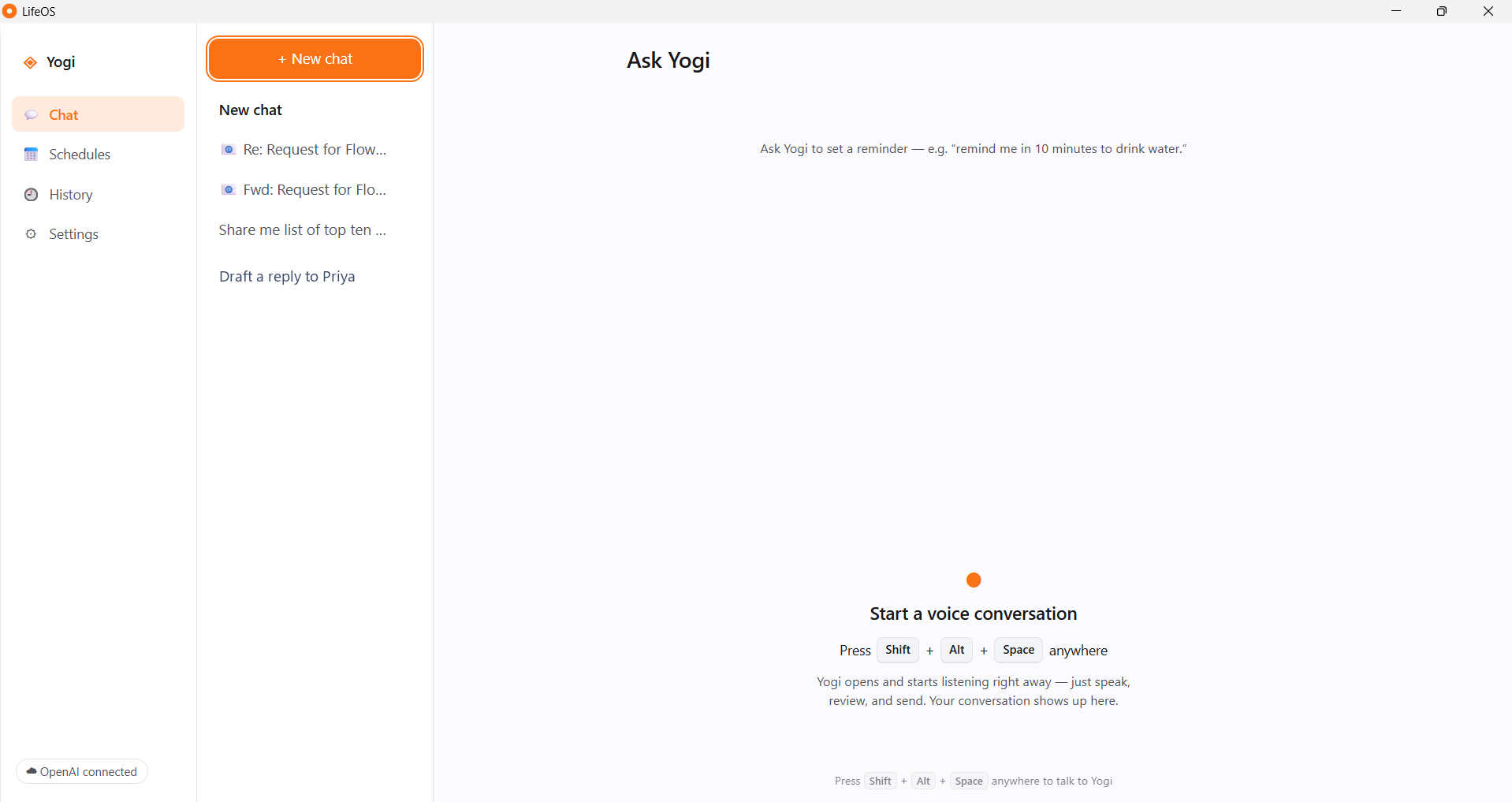
This projectLifeOS is a voice-first companion for Windows named Yogi. Talk or type to set reminders, get answers from the web, and hear your inbox - with no account, no telemetry, and your data living in a file on your own machine.
Great tools already exist for each slice of this - a launcher here, a dictation box there, an inbox agent somewhere else. LifeOS folds those workflows into one local-first Windows app. Here is an honest side-by-side, drawn only from each product's official site.
Voice-first, privacy-first AI companion for Windows - reminders, chat, web answers, and email, on-device by default.
This project
An extendable keyboard-driven launcher with built-in AI chat and 1000+ extensions. macOS-first, Windows in beta.
raycast.com
AI voice-to-text that turns speech into polished writing inside the apps you already use, across desktop and mobile.
wisprflow.ai
AI voice-to-text with on-device transcription models and screen-aware modes. Works offline on supported hardware.
superwhisper.com
An open-source, local-first AI desktop agent that automates repeatable computer tasks with your own model and key.
deskwand.com
A keyboard-first AI productivity launcher for Windows, with AI assist, quick actions, and voice commands on its Pro tier.
getaskdesk.com
A cloud AI executive assistant that organizes your inbox, drafts replies, and automates email workflows.
jace.ai| Product | Voice | NL reminders | Desktop launcher | Local-first | Open source | Platforms | Bring your own key | Offline | Pricing | |
|---|---|---|---|---|---|---|---|---|---|---|
| LifeOS |
✓ | ✓ | ✓ | ✓ | ✓ | ✓ | Windows | ✓ | ✓ | Free · MIT |
| Raycast |
✗ | ✗ | ✓ | ✗ | ✗ | ✗ | macOS · Win (beta) · iOS | Partial | Partial | Free / from $8·mo |
| Wispr Flow |
✓ | ✗ | ✗ | ✗ | ✗ | ✗ | Win · macOS · iOS · Android | ✗ | ✗ | Free / from $12·mo |
| Superwhisper |
✓ | ✗ | Partial | ✗ | ✓ | ✗ | Win · macOS · iOS | ✓ | ✓ | Free / from $8.49·mo |
| DeskWand |
✗ | ✗ | ✗ | ✗ | ✓ | ✓ | Win · macOS · Linux | ✓ | Partial | Free |
| AskDesk |
✓ | ✓ | ✓ | ✗ | ✓ | ✗ | Windows | ✗ | Partial | Free / from $8·mo |
| Jace |
✗ | ✗ | ✗ | ✓ | ✗ | ✗ | Web | ✗ | ✗ | From $20·mo |
Compiled only from each product's official website (researched July 2026). “Not documented” means the official site does not list the feature - it may still exist. Products evolve; verify current details on their sites.
A focused feature set that actually ships in v0.1.0 - no vaporware.
Hold a real, persistent conversation with Yogi across auto-titled, reopenable chat sessions.
Create reminders by talking or typing - Yogi asks instead of guessing when the time is unclear.
Ask live-fact questions and get answers with citations - and an honest note when a search fails.
Six voice personalities with a speed control and preview - streamed from OpenAI or offline Windows voices.
Speech is transcribed by a model that ships inside the app - offline by default, cloud only if you opt in.
See every active schedule, pause them all at once, and review a filterable history of what fired.
Turn each new email into a chat with a summary, action items, and a spoken heads-up.
A reminder can run a web lookup when it fires and speak the answer - not just the note you left.
Time, greetings, reminders, schedules, and settings all work with zero network and no key.
Every stage from the download link to a spoken answer - the real path through LifeOS, with the on-device work in the middle and OpenAI touched only when you've turned a cloud feature on.
Per-user install, no admin.
A single ~155 MB .exe (a portable build is available too).
Adds Desktop, Start-Menu & uninstall entries - no admin prompt. (The portable build just runs, no install.)
A second launch just focuses the running window - never a duplicate.
All local, before any UI shows.
SQLite via node:sqlite (WAL) opens lifeos.db, runs migrations to schema v8, and seeds 50 settings.
A default-deny network filter + CSP go up first. Nothing can reach the internet yet.
Conversation engine, action dispatcher, wall-clock scheduler, provider registry, and Gmail sync are wired up.
Hidden audio, popup & launcher windows spin up; the tray icon appears and Alt+Shift+Space is armed. Overdue reminders are caught up.
On-device by default.
Press the mic or the global hotkey. The mic engages only on your action - no wake word, no always-on listening.
An AudioWorklet down-samples the mic to 16 kHz and streams frames to the main process. Audio is never written to disk.
Transcribed on-device by the bundled sherpa-onnx Zipformer - or, if you opt in, by OpenAI gpt-4o-transcribe with automatic fallback to sherpa.
A local router answers time / greeting / settings instantly with no model. Otherwise the gated LLM (gpt-4o-mini, strict JSON) classifies the turn - and if there's no key, an offline parser takes over.
Re-routed to the local parser → a confirmation card. The LLM never creates it; nothing saves until you confirm by click or “yes.”
Answered by the model; live-fact turns trigger a web search (gpt-4o-mini-search-preview) and return an answer with sources.
When Gmail is connected, a new email is summarized into its own chat with action items - grounded, local, opt-in.
OpenAI only when enabled.
Requests reach api.openai.com only when a capability is enabled, keyed & consented, billed to your account. A reliability guard rewrites any fabricated success into an honest failure.
Spoken through a hidden audio window - offline Windows voices by default, or streamed OpenAI gpt-4o-mini-tts via Media Source Extensions when you've enabled cloud voices.
The reply fans out to every window - main chat, popup, and launcher stay in sync on one live conversation.
Locally, on your disk.
The turn is written to chat_turns, and any fired reminder to history - all in your local SQLite file, never uploaded.
LifeOS understands many reminder phrases with a parser built into the app. As long as your wording matches a supported pattern, the reminder is created instantly - with no internet connection and no OpenAI API calls. Here is exactly what the current version understands.
A deterministic parser reads your phrase, finds the date and time with a local date library, and builds the reminder on your machine. No request ever leaves your PC.
Reminders never call OpenAI. Even with a key connected, the model never creates a reminder - it is always built by this local parser, so it costs nothing and works offline.
The cloud model is used only if you have enabled it and you type something that is not a reminder or a local command - a general question, for example. Reminders themselves stay offline.
Give LifeOS a trigger, a time, and what to do. Leave one out and it asks a quick question instead of guessing.
Remind me tomorrow at 9 AM to attend the meeting
Every phrase below was run against the current parser and creates a reminder instantly.
Different phrasings the parser also understands.
Recognized offline, but missing one detail - so it asks instead of guessing.
Creating reminders never appears on this side - it is always local.
With cloud features off, every step above runs on your device - the network is never touched.
Uniformly framed so nothing is stretched or cropped. Click any shot to zoom.
Most assistants send everything to a server and ask you to trust a document. LifeOS flips that: it runs on your machine, and cloud access is opt-in, per-feature, and uses your own key.
Reminders, chats, and settings sit in a local SQLite database you can open and read yourself.
A built-in filter blocks every outbound request until you switch on a cloud feature.
No analytics SDK, no crash reporter, no usage stats, no update ping. LifeOS doesn’t know you exist.
Cloud features use your OpenAI key, encrypted with Windows secure storage and billed to you.
LifeOS itself is free. Cloud features use your own OpenAI key and are billed to you directly. Here's roughly what that adds up to - so there are no surprises.
| Capability | OpenAI model | Approx. price | Free offline alternative |
|---|---|---|---|
| Speech-to-text | gpt-4o-transcribe | ~$0.006 / minute of audio | ✓ sherpa-onnx, on-device |
| Chat & responses | gpt-4o-mini | ~$0.15 / 1M input · $0.60 / 1M output tokens | ✗ needs a key |
| Text-to-speech | gpt-4o-mini-tts | ~$0.015 / minute of audio | ✓ Windows voices |
| Web search | gpt-4o-mini-search-preview | gpt-4o-mini tokens + a small per-call search fee | ✗ needs a key |
gpt-4o-mini turn (~1,200 input + ~150 output tokens). STT ≈ $0.006 + chat ≈ $0.0003 +
TTS ≈ $0.0075. Text-only chat, or voice with the offline STT/TTS defaults, costs far less because it skips
the per-minute audio charges.
gpt-4o-mini)Free, open-source, and yours to keep. Install it and start talking to Yogi in minutes.